Your POS system,
in your hands.
Download the FZEX POS app on your Android tablet, link it to your dashboard in seconds, and start accepting orders right away.
Free · Android 7.0+ · Updated regularly
Set up in 4 steps
From download to first order — the whole setup takes under 5 minutes.
Download from Google Play Store
Search FZEX POS on Google Play Store, or tap the download button above. Requires Android 7.0 or higher.
Register your business account
If you haven't registered, go to fzexpos.my/signup and create your account. Choose F&B or Retail plan.
Get your passkey from the dashboard
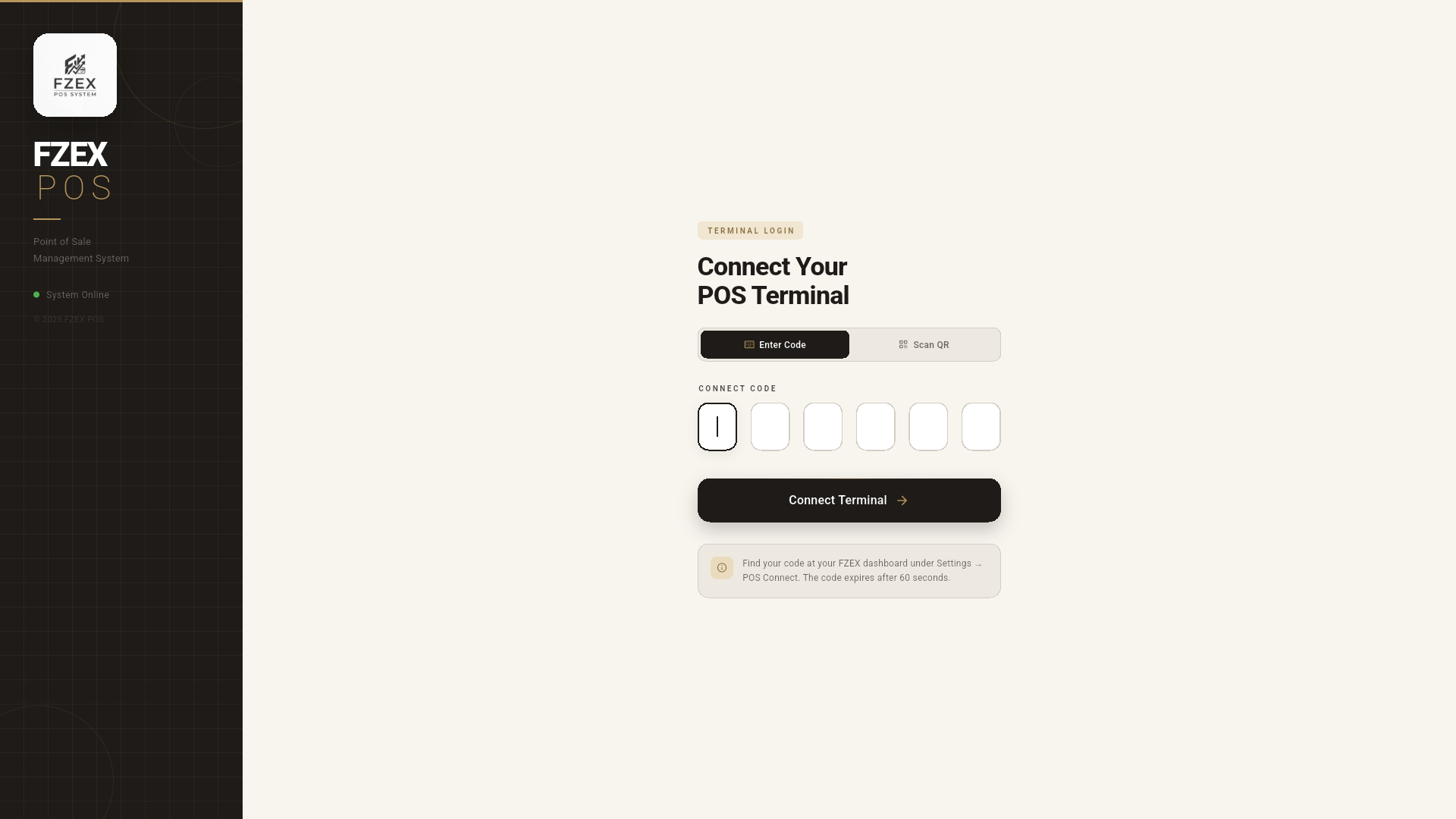
In your dashboard, go to Device → POS Connect. A 6-character passkey appears — valid for 2 minutes. Open the app and enter it to link your tablet.
Login with staff WWID and start selling
After linking, each staff member logs in using their 8-digit WWID. Clock in, and the full POS interface is ready.
Four steps to start selling
Every shift starts the same way — fast, secure, and staff-specific.
Enter the 6-character passkey from the dashboard (Device → POS Connect) to link the tablet.
Each staff enters their 8-digit WWID — assigned when you add them in the staff management page.
Select shift and clock in to begin the session. Tracked automatically for payroll and attendance.
You're in. Full POS interface — menu, orders, payments, kitchen display — everything ready.
Everything you need,
nothing you don't.
All core POS features in one app — built for speed, designed for the floor.
Create dine-in, takeaway, delivery or drive-thru orders with a touch-optimised interface built for tablets.
Monitor all live orders in real time. Update status from Pending to Ready with a single tap.
Auto mode sends orders directly to kitchen. Approval mode lets staff confirm before preparation.
Dual-screen support shows the cart live on the customer-facing screen — no extra hardware needed on iMin D4.
Cash, card terminal, DuitNow QR, Touch 'n Go, GrabPay, Boost, ShopeePay, Alipay, WeChat Pay and FPX.
Auto-print via built-in iMin printer, Sunmi, or any Bluetooth ESC/POS printer.
Each staff logs in with their 8-digit WWID. Clock-in and clock-out tracked automatically per shift.
Today's revenue, top products, and payment breakdown — right on the device.
Customers scan a table QR, order from their phone, payment goes through — arrives at POS and kitchen automatically.
Ready to get started?
It's free to try.
Register your account, download the app, and take your first order today.